Debugging a Python Azure Function with PyCharm
Debugging a Python Azure Function with PyCharm
This guide walks through setting up a local debugging environment for a Python Azure Function using PyCharm’s remote debugger. By the end, you will be able to set breakpoints and step through your function code locally.
Prerequisites
Before getting started, make sure you have the following installed:
- Node.js and npm
- Python 3
- PyCharm Professional (the remote debug server feature requires the Professional edition)
Step 1 - Install Azure Functions Core Tools
Azure Functions Core Tools lets you run and debug Azure Functions locally from the command line.
1
npm install -g azure-functions-core-tools@4 --unsafe-perm true
Step 2 - Install Azurite
1
npm install -g azurite
What is Azurite?
Azurite is a local emulator for Azure Storage services. It runs on your machine and mimics Azure Blob Storage, Queue Storage, and Table Storage, allowing you to develop and test locally without needing a real Azure account or internet connection. When your code is ready, you simply swap the local connection string for a real Azure one and deploy.
Step 3 - Create the Azure Functions Project
Navigate to your project directory:
1
cd /development/ForgeRunner/src/
Initialize a new Azure Functions project:
1
func init ForgeRunner --worker-runtime python
func init- creates a new Azure Functions projectForgeRunner- the name of the project folder--worker-runtime python- specifies Python as the language runtime
Navigate into the generated project folder:
1
cd ForgeRunner
Step 4 - Set Up the Python Virtual Environment
Create a virtual environment inside the project folder:
1
python3 -m venv .venv
Activate the virtual environment:
1
. ./.venv/bin/activate
Step 5 - Create a Timer Trigger Function
Add a new function to the project using the Timer Trigger template:
1
func new --template "Timer Trigger" --name ForgeRunner
func new- creates a new function inside the current project--template "Timer Trigger"- uses the Timer Trigger template, meaning the function runs on a schedule rather than being triggered by an HTTP request--name ForgeRunner- names the functionForgeRunner

Step 6 - Install the PyCharm Debug Dependency
Open requirements.txt and add pydevd-pycharm:
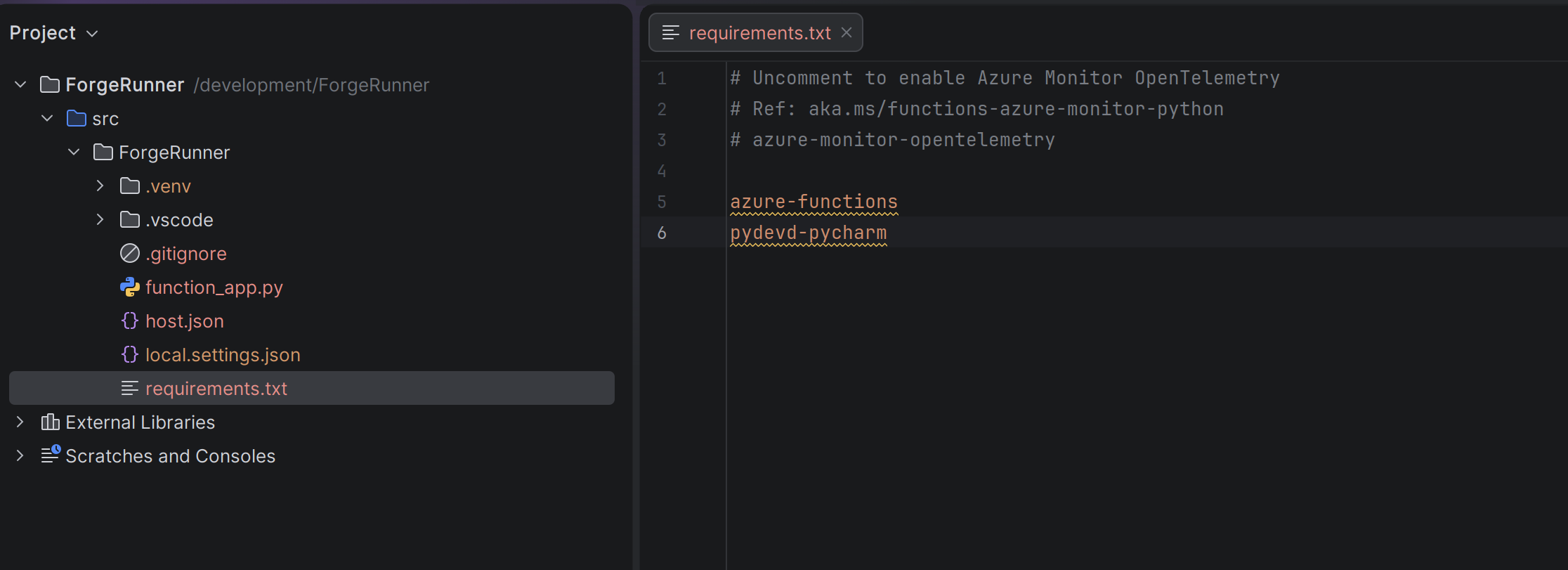
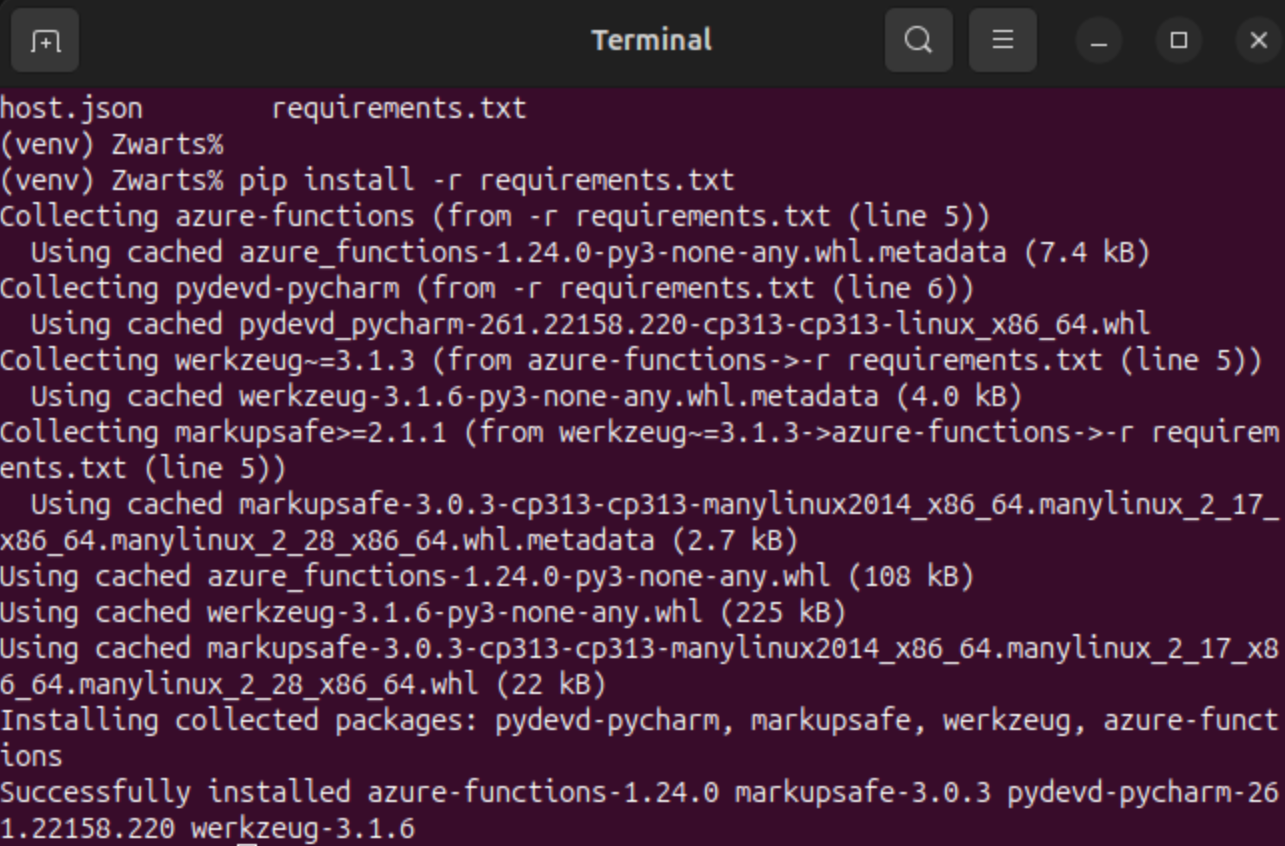
Install the updated requirements:
1
pip install -r requirements.txt
Step 7 - Configure the Python Interpreter in PyCharm
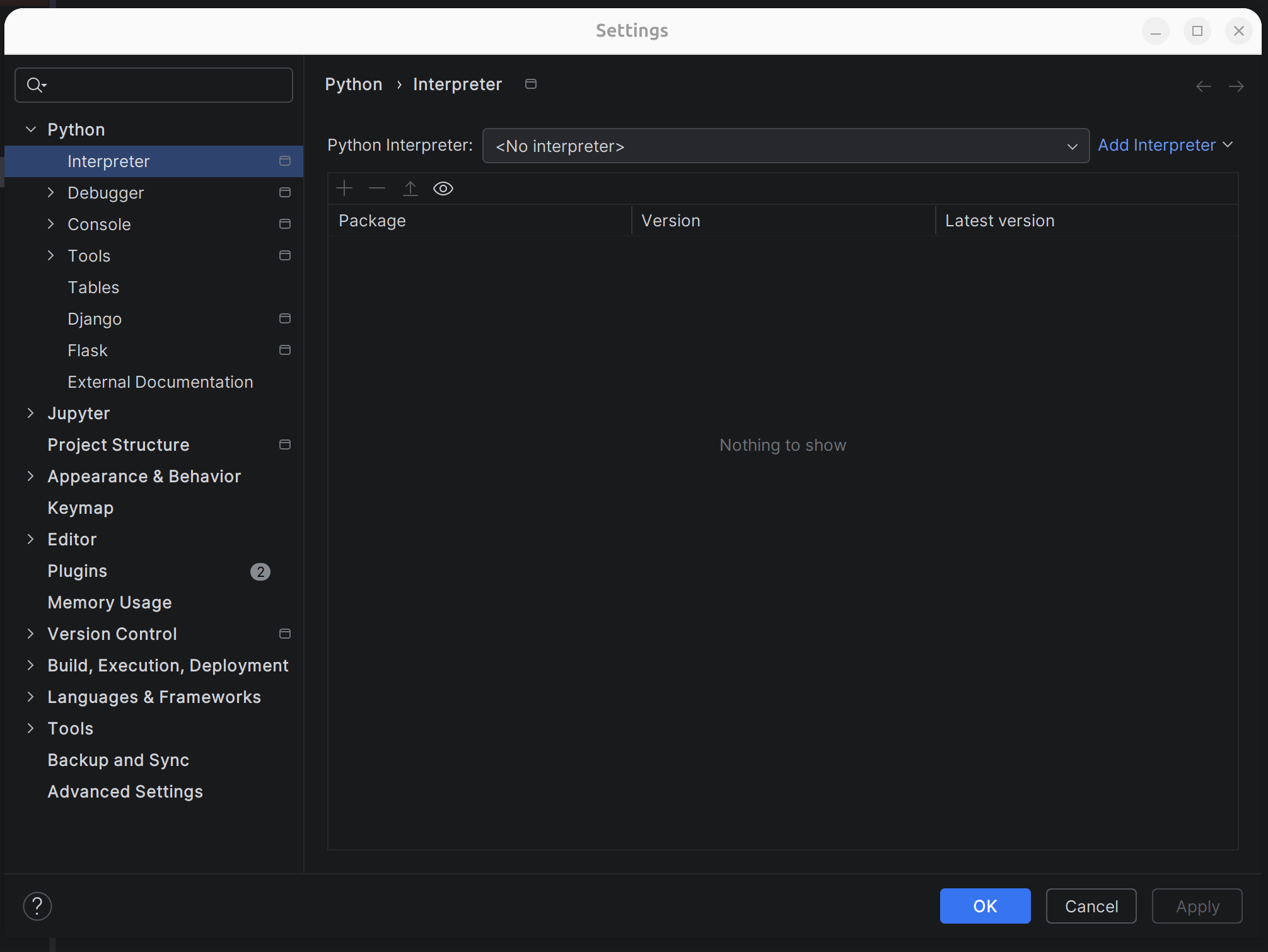
Navigate to File > Settings > Interpreter.
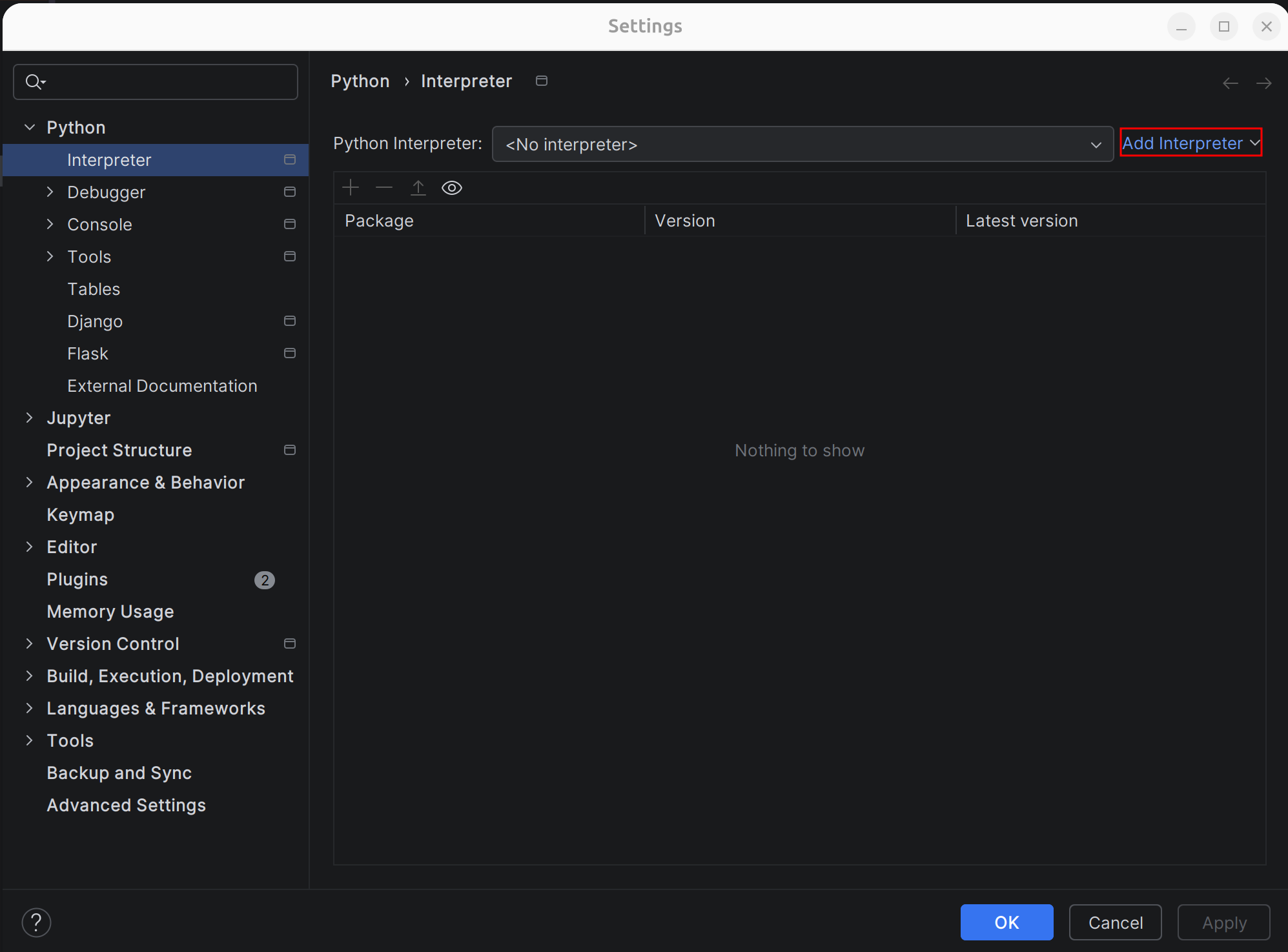
Click Add Interpreter.
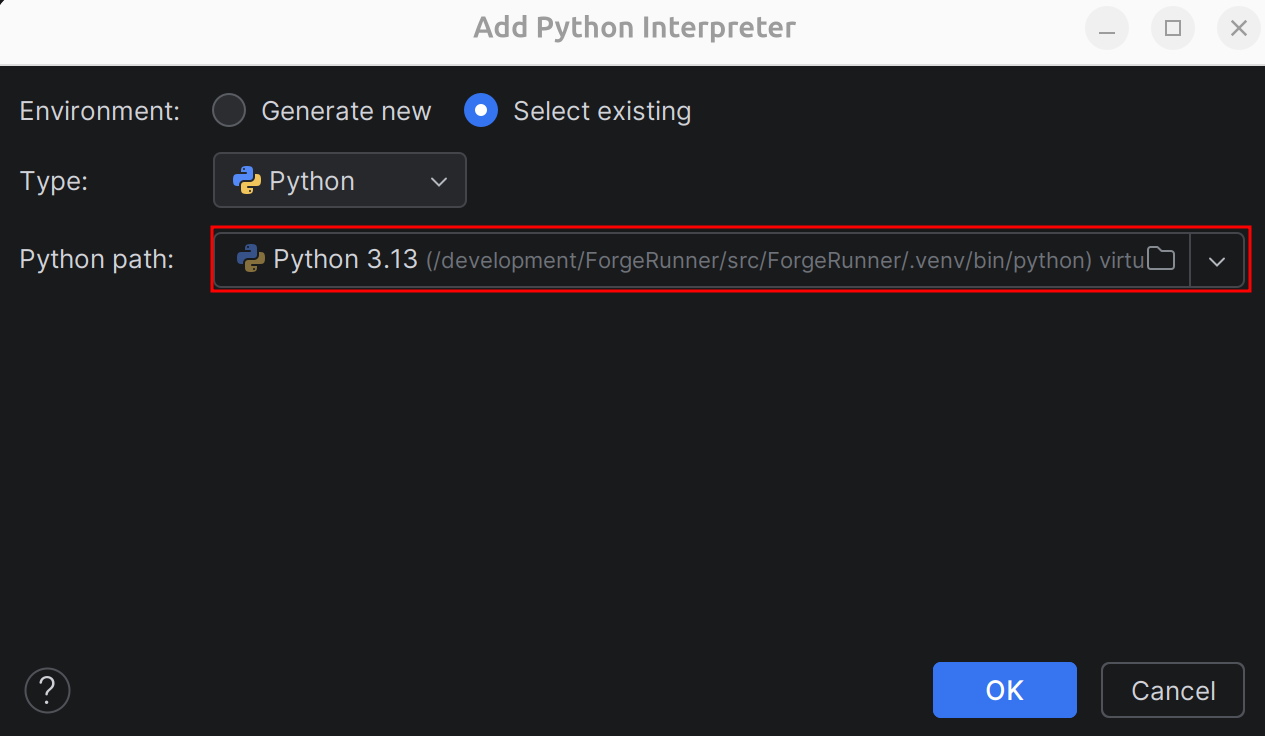
Select Add Local Interpreter, choose Existing, and provide the Python path. For this example, the path is:
1
/development/ForgeRunner/src/ForgeRunner/.env/bin/python
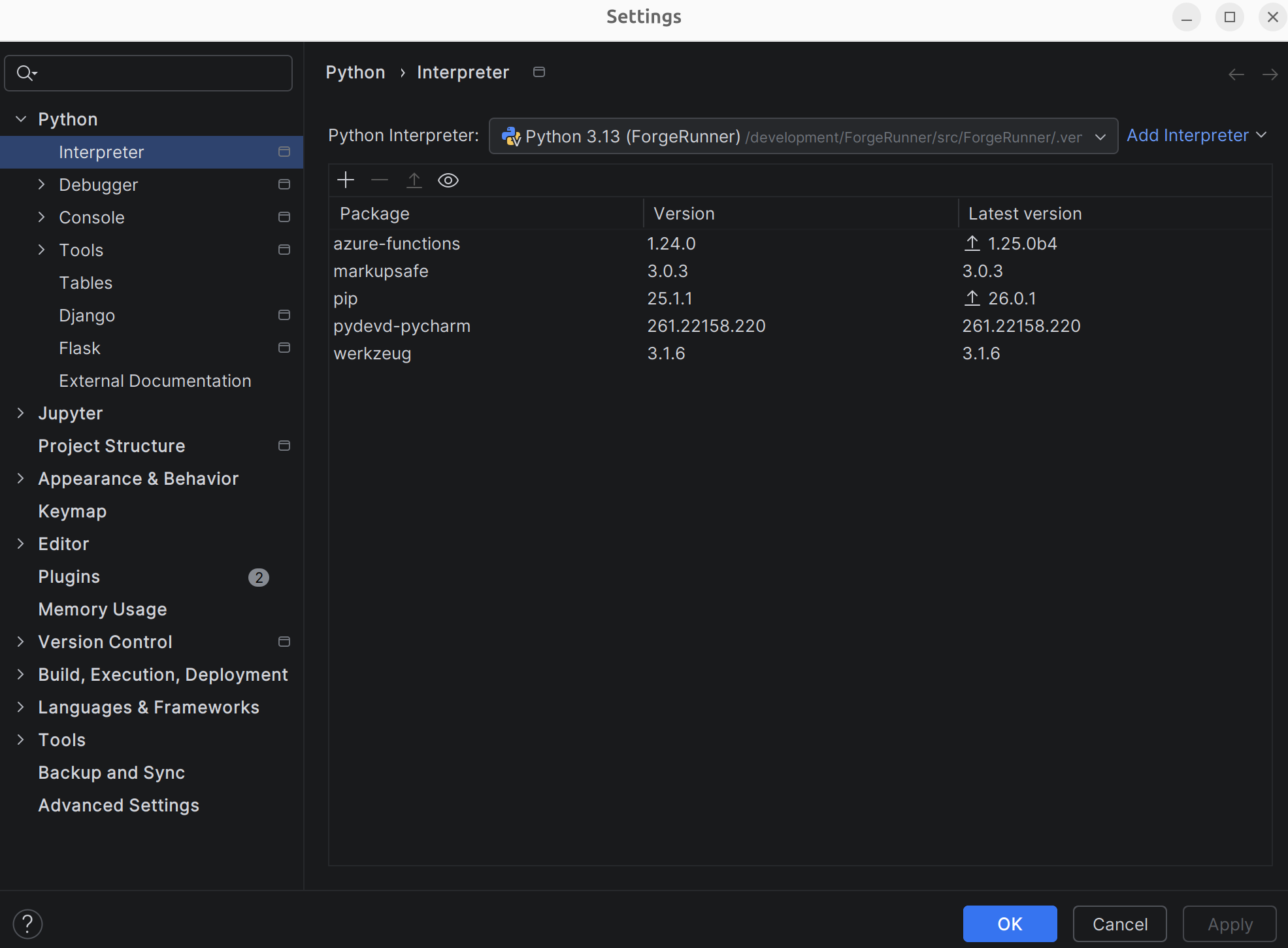
Confirm the interpreter is configured correctly.
Step 8 - Configure the PyCharm Debug Server
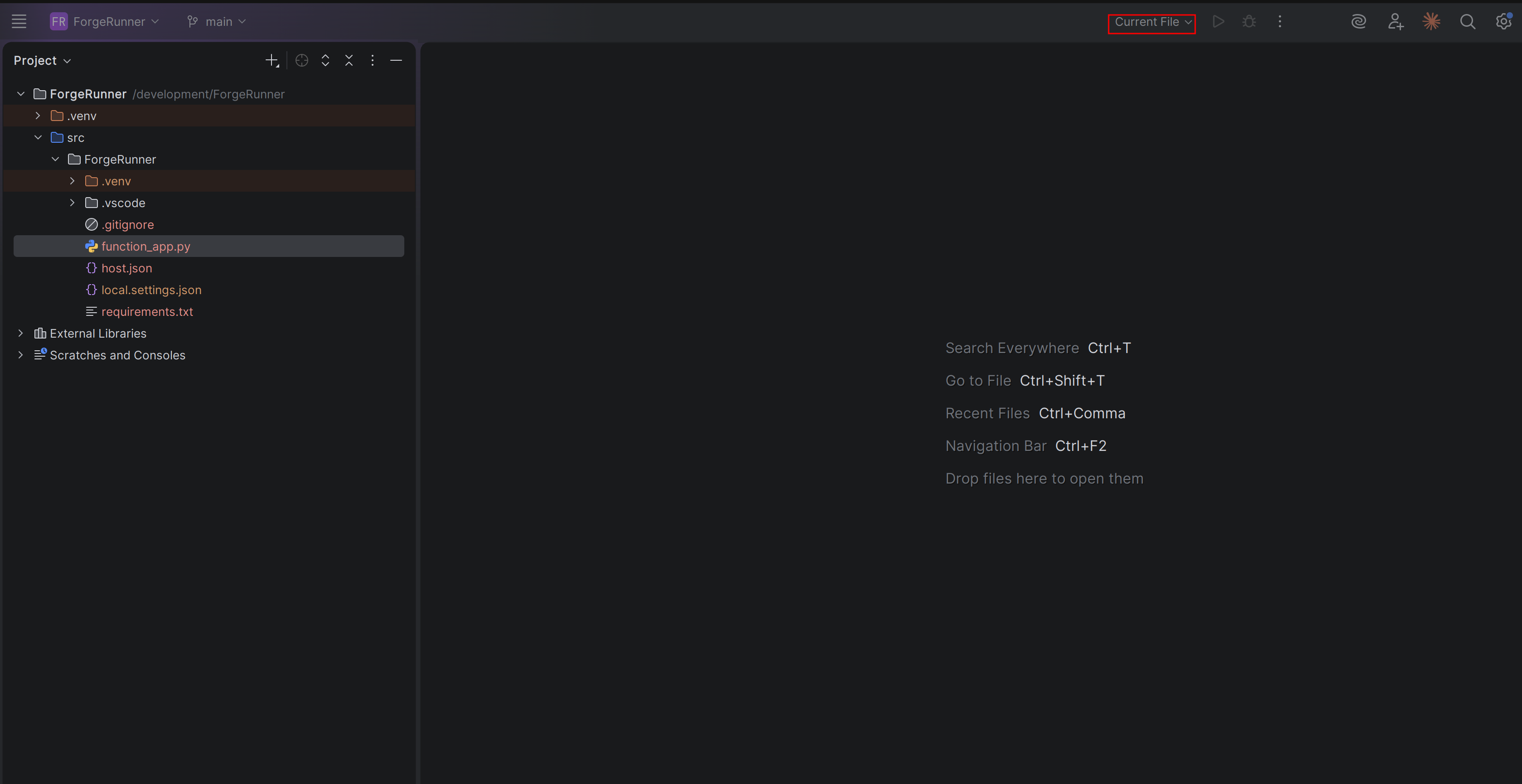
Next to the run icons, click on Current File and select Edit Configuration.
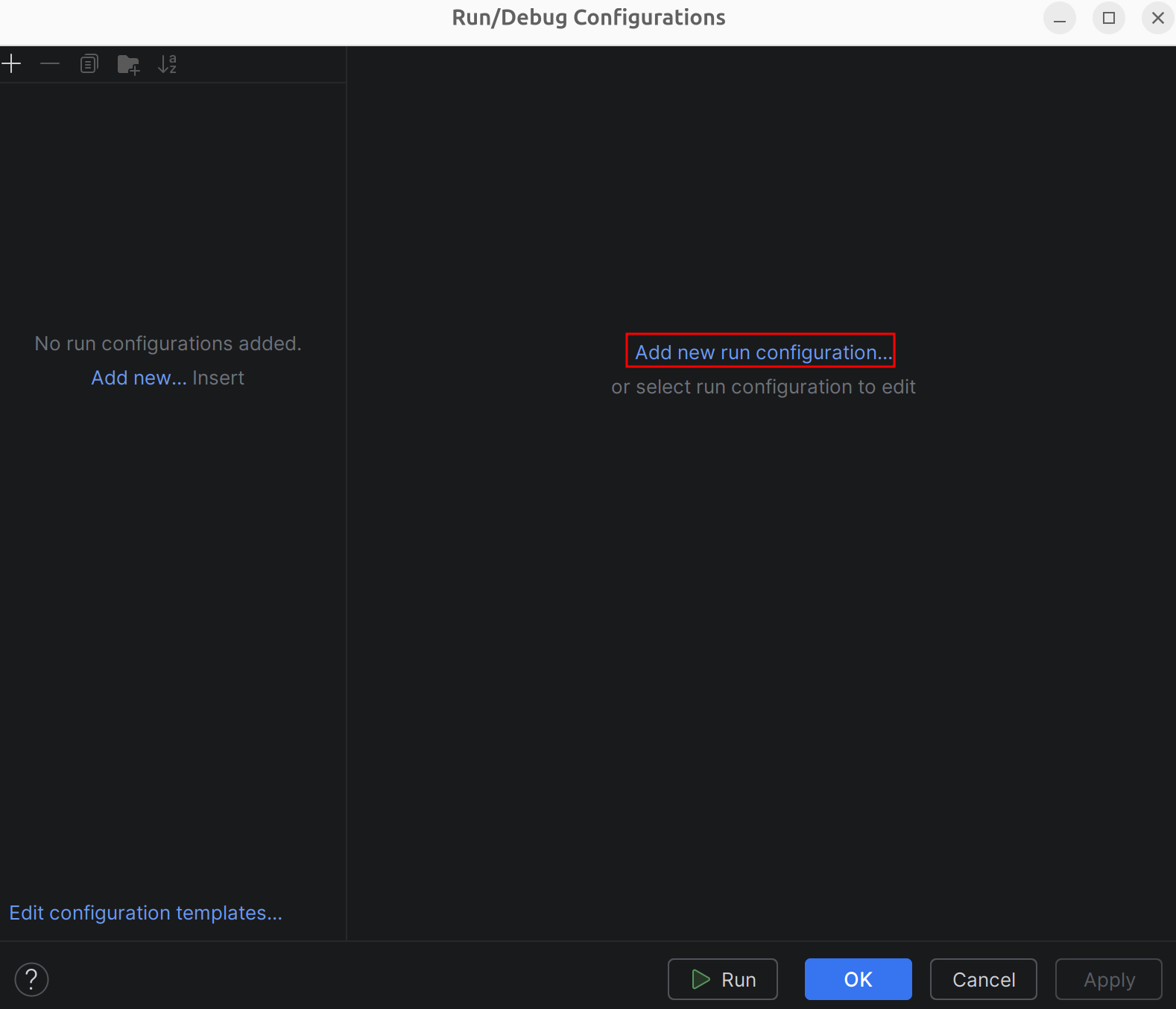
Click Add new run configuration and select Python Debug Server.
Set the port to
6932, configure the path mappings, and click Apply:- Local Path:
/development/ForgeRunner/src/ForgeRunner - Remote Path:
/development/ForgeRunner/src/ForgeRunner
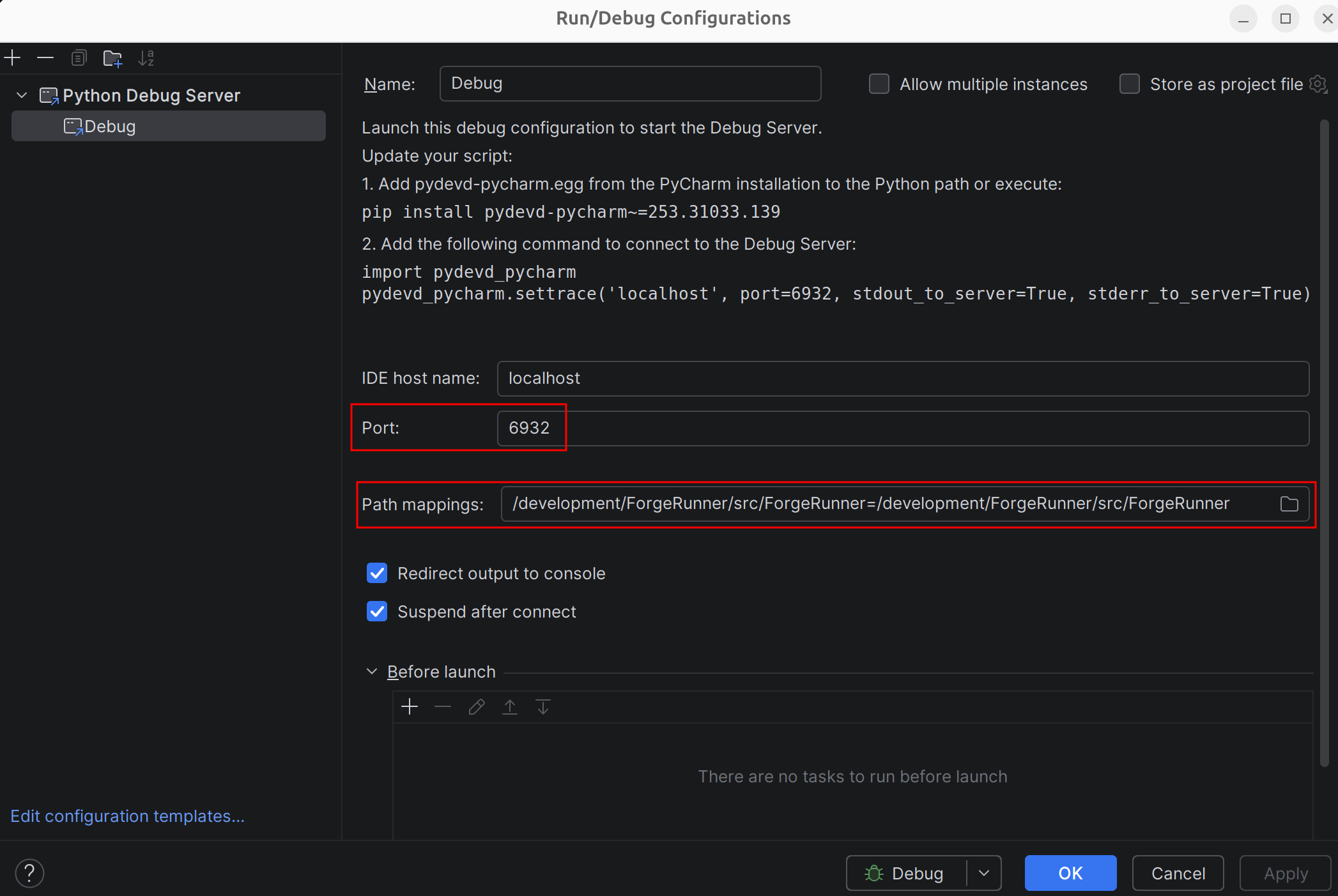
- Local Path:
Step 9 - Update the Function Code
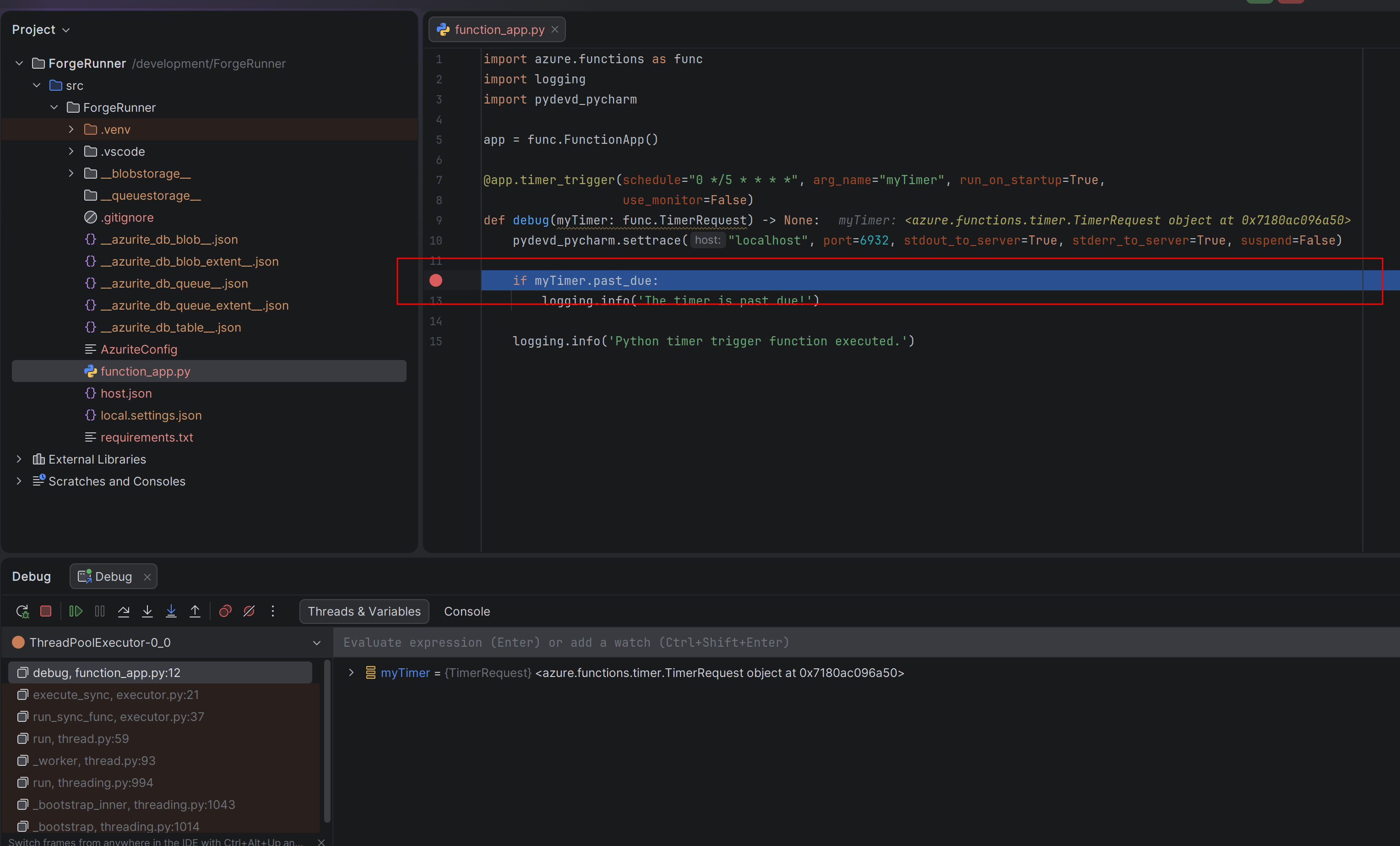
Open function_app.py and update it to enable run_on_startup and connect to the PyCharm debug server:
1
2
3
4
5
6
7
8
9
10
11
12
13
14
15
import azure.functions as func
import logging
import pydevd_pycharm

app = func.FunctionApp()

@app.timer_trigger(schedule="0 */5 * * * *", arg_name="myTimer", run_on_startup=True,
                   use_monitor=False)
def debug(myTimer: func.TimerRequest) -> None:
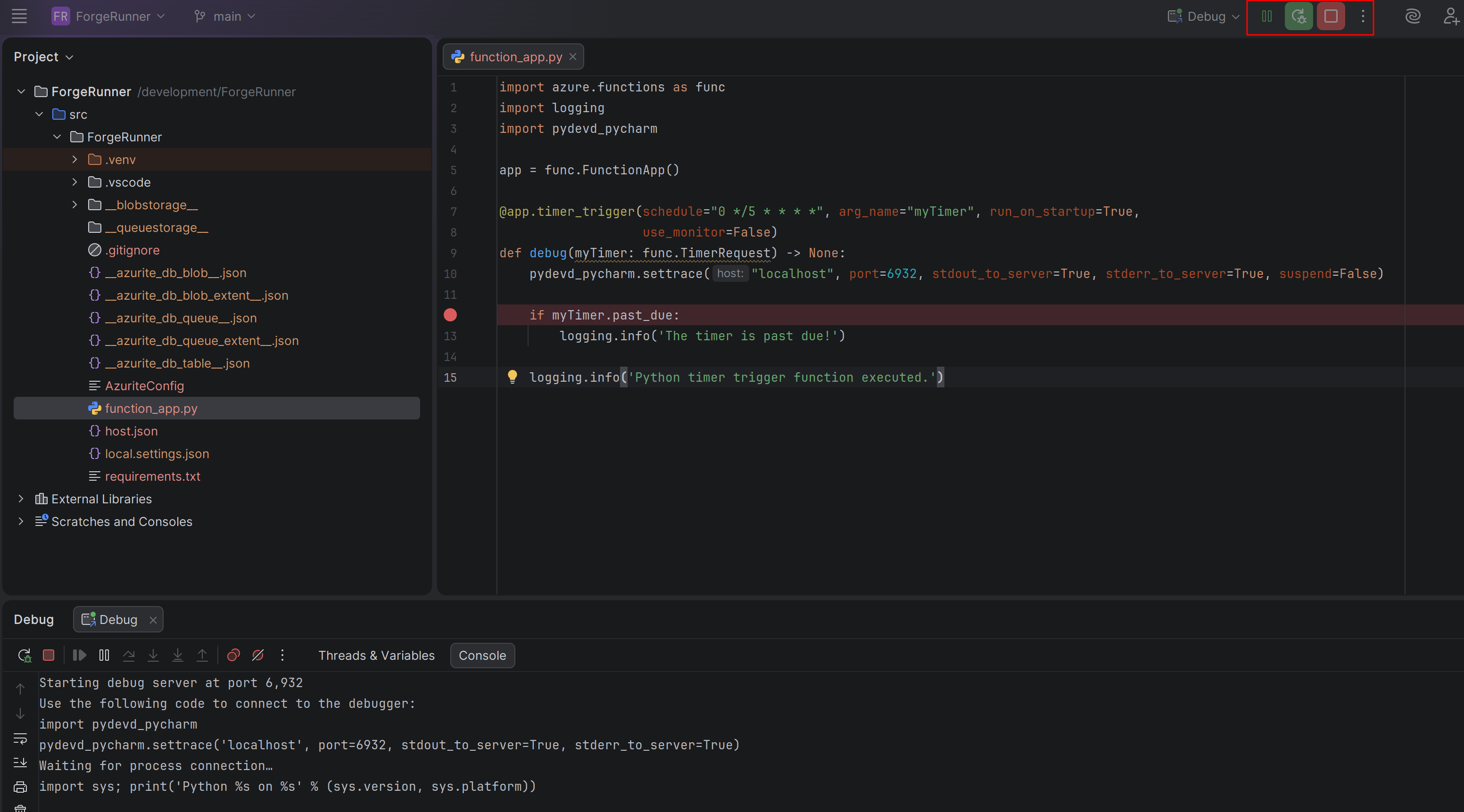
    pydevd_pycharm.settrace("localhost", port=6932, stdout_to_server=True, stderr_to_server=True, suspend=False)

    if myTimer.past_due:
        logging.info('The timer is past due!')

    logging.info('Python timer trigger function executed.')
Set a breakpoint on line 12 (if myTimer.past_due:).
Step 10 - Start Debugging
With everything configured, follow these three steps in order:
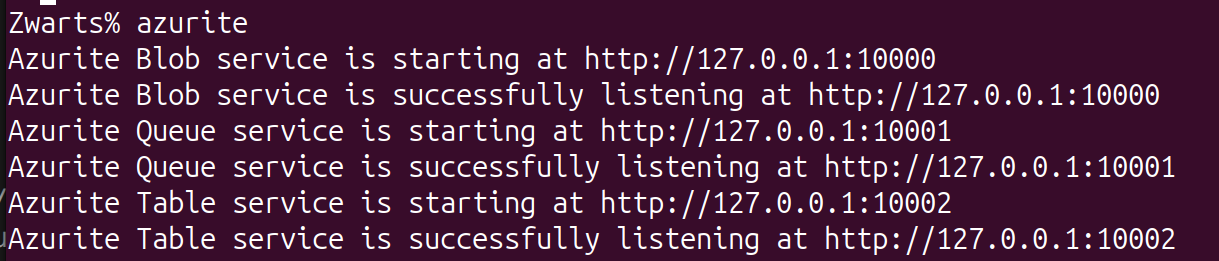
1. Start Azurite in a terminal:
1
azurite
2. Start the debug server in PyCharm by clicking the debug icon:
3. Start the Azure Function in a terminal with the virtual environment activated:
1
func start
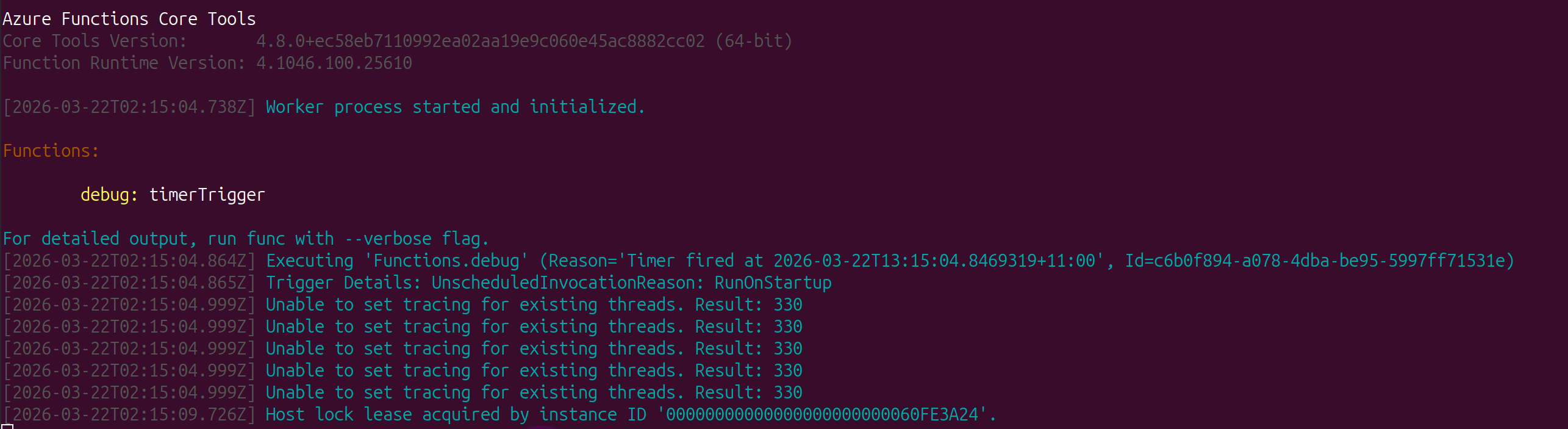
Once the function triggers, PyCharm will hit the breakpoint and you can inspect variables, step through code, and debug as needed.